[I] am always looking for ways to optimize the use of my time, and recently I’ve hit on a process that helps speed up getting papers scanned into Evernote. I call it my “Scan Now, Organize Later” method. And yes, it is as simple as it sounds. It works like this:
- Each evening, after I pick up the mail, I scan what paper I need into Evernote.
- If there is any other paper in my pile, in front of my scanner, I scan that in, too.
- Later, at some point in the future when I have time, I organize the scans, using a Saved Search to find the unprocessed scans that still need to be organized.
That’s it. If it sounds a little counter-intuitive, let me explain in a little more detail.
Scanner settings
I am still using my trusty Fujitsu ScanSnap s1300i for all of my scanning at home. For this process of mine to work, I have made some changes to the defaults for how my scans get into Evernote. The first thing I did was change the file name format for the incoming scan in the ScanSnap manager:
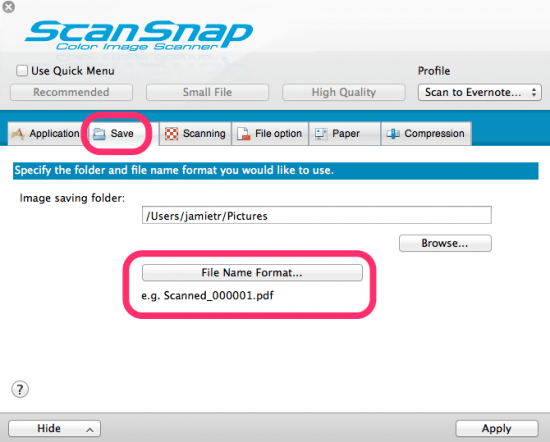
Instead of using a date-based format, I use a counter-based format. And my format (as you can see from the screenshots above and below) preface the counter with “Scanned_”:

These settings make it easy for me to identify notes that I’ve scanned into Evernote and haven’t yet processed. They all go into my Inbox notebooks, of course, but a lot of stuff goes into my Inbox notebook for processing. Because the title of the scanned notes all start with “Scanned_” it makes them easy to find.
Finding the scanned notes
Usually, when I am scanning in the day’s paper (if there is any–often these days, there is none), I just want to get it scanned in and move on. I’ll organize it later. But to be able to organize it, I need to be able to find these notes in the clutter of all of my other notes. To do this, I’ve created a Saved Search called “Scanned Inbox.” My search looks like this:

What the search does is look for any notes in my Inbox notebook whose title begins with the word “Scanned.” The asterisk at the end of the search is what tells the search I’m looking for the word at the beginning of the title. Of course, this search will pick up any notes that have been titled Scanned_001, Scanned_002, etc. In other words, it identifies only those notes that I have scanned in. Now I have a way of easily finding those scanned documents that still need to be organized.
Organizing my scanned notes
I try to organize my notes in little scraps of time that aren’t otherwise particularly useful: standing in lines; sitting in waiting rooms; or when watching a little TV before bed. It only takes half a brain to do it, after all. What I do is this:
First, I run my “Scanned Inbox” saved search (which I’ve pulled into my shortcut list). Right now, when I run the search, there are only 2 “unprocessed” scans:

Next, I click on a note in the list, give a new title, update the create date if necessary so that it matches the date on the document itself, tag it, if necessary, and then file it away in the proper notebook.
I repeat this until all the scans are processed, or until I’ve run out of time.
Once the note is renamed to something other than “Scanned_” it will automatically fall of my search.
A little side-benefit
This method has a nice little side-benefit for the statistic-minded person. Using the counter method of naming your scans, you can easily see how many documents you’ve scanned in at any given time. The number will be the number that shows up after the _ in your note title. (Of course, the number represents the number of documents you’ve scanned since changing your naming method, but you get the idea.)
This little change to my scanner settings and how I process my scans saves me a lot of time, and gives me a great deal of autonomy as to when and how I organize my scans. I can happen at the same time I scan the documents in, but it doesn’t have to.
If you have a suggestion for a future Going Paperless post, let know me. Send it to me at feedback [at] jamietoddrubin.com. As always, this post and all of my Going Paperless posts is also available on Pinterest.
Last week’s post: Using Shortcuts in Evernote to Speed Up Your Work
Comments